
Dictato Setup

First-run guide

Set up Dictato on Mac

Complete these steps once, then Dictato will be ready from the menu bar whenever you need it.

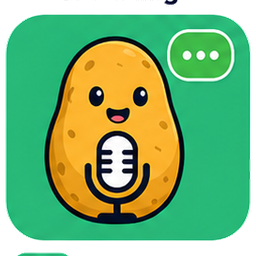
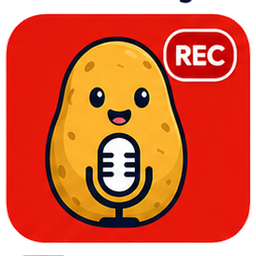
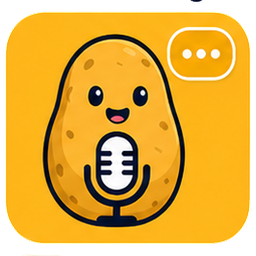
The potato shows exactly what Dictato is doing

Blue potato iconReadyBlue
Red potato iconRecordingRed
Yellow potato iconProcessingYellow
Green potato iconInsertedGreen

Setup checklist

Follow the steps in order

Step 1

Install and open Dictato

Install the app before opening it so macOS assigns permissions to the correct copy.

Version 0.1.31 requires an Apple-silicon Mac (M-series) running macOS 26 or later. Older macOS versions and Intel Macs are not supported by this release.

Open the DMG, drag Dictato into Applications, then eject the disk image.

Open Dictato from Applications. The potato appears in the menu bar at the top of the screen.

Step 2

Sign in to your Dictato account

Use the same Dictato account on every platform.

Potato menuAccount & BackendSign in

Step 3

Allow microphone access

The microphone permission allows Dictato to record after you activate it.

System SettingsPrivacy & SecurityMicrophone

Turn on Dictato. If it is not listed yet, try one short dictation so macOS displays the permission request.

Step 4

Allow Accessibility access

Accessibility permission lets Dictato insert completed text into the active application.

System SettingsPrivacy & SecurityAccessibility

Turn on Dictato, then quit and reopen it. Development builds may instead require access for Terminal or Xcode.

Step 5

Choose one-press behavior

Option-Space is the default; toggle behavior uses one press to start and another to stop.

Potato menuSettings & DiagnosticsActivation

Under Behavior, select Toggle recording. Under Key, select Option + Space.

Step 6

Run a short test

TextEdit is the simplest place to verify microphone and paste permissions.

  1. Open TextEdit and click in a blank document.
  2. Press Option + Space, speak one sentence, then press it again.
  3. If recording works but insertion does not, recheck Accessibility and reopen Dictato.
  4. Your completed output remains available under Recent & Recovery.

Need this guide later?

Open the Dictato potato menu and choose Help > Setup Guide. The guide does not need to open on every startup.